







Windows 11 Home or Pro: the differences and which is right for you?
Home or Pro? Start with how you use your computer, check what is installed, and identify the features you actually need before buying a license.
Explore the guide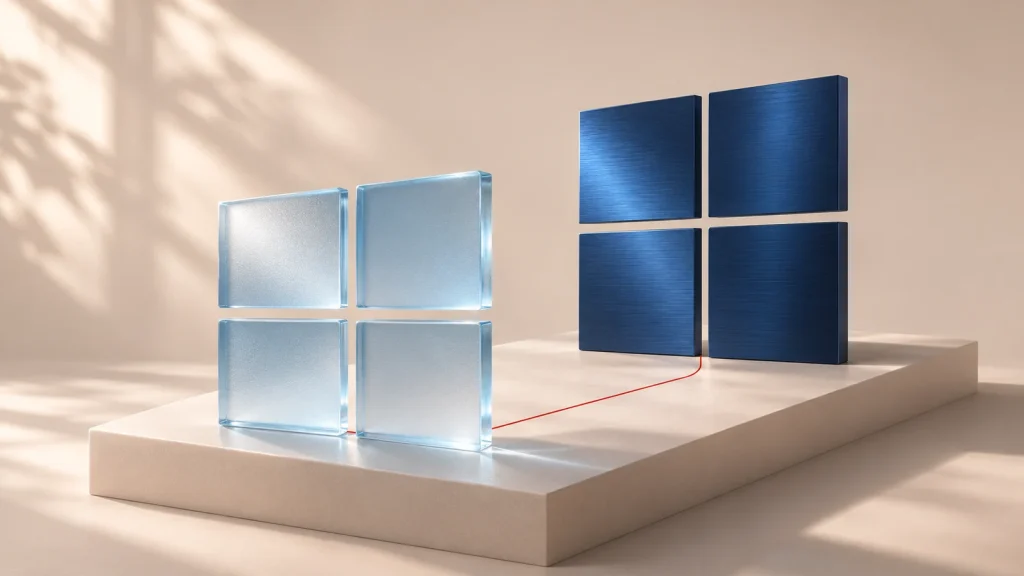
If you mainly browse the web, study, use Office and play games, start by considering Windows 11 Home. If you need management and security tools for work, compare Pro features against your specific requirements. The name “Pro” alone is no reason to pay more.
Start with what you do on your computer
Before choosing a license, write down your three main tasks: assignments, running a business, gaming, or connecting to your work computer. Then check whether an application or organization requires a specific edition. This is more useful than choosing the edition with the most impressive name.
For example, a student working in a browser and documents does not need Pro just because they use the computer every day. An employee following IT installation instructions, however, should check the organization's requirements before buying a personal license. These are selection scenarios, not a compatibility assessment of your computer.
Encryption in Home and Pro: the distinction to understand
Microsoft distinguishes Device Encryption, which may also be available on supported Home devices, from BitLocker Drive Encryption management in Pro, Enterprise and Education editions. Saying “Home has no encryption” is therefore inaccurate. Availability and settings also depend on the device and its configuration.
If you need built-in remote access, distinguish the computer you connect to from the device you connect from. Check the host computer's edition and Microsoft's Remote Desktop instructions. Do not buy an edition merely because you need to “work remotely” without understanding which tool your organization uses.
Four checks before buying Windows 11
- What is already installed? Open Settings → System → About and check the edition name. Note Home or Pro, not just “Windows 11”.
- Is it already activated? Check the activation screen. A suitable license may already exist, making another purchase unnecessary.
- What is the exact product? Edition, license type, activation region and installation terms are separate details. Do not infer all of them from the price.
- Is the computer compatible? Review the manufacturer's requirements. Buying a code does not change unsupported hardware or guarantee compatibility with professional software.
Comparing two offers? Keep the full product name and delivery terms. A lower price is not necessarily a better deal if the edition or usage terms differ. Ask for clarification before paying if the description is unclear.
How to choose at UniKey without guessing
In the catalogue, you can switch editions and review each specific option. If you are unsure, tell us what is currently installed and what you plan to do on the computer. You do not need to share a password or product key to ask about compatibility.
Explore Windows editions at UniKey ← · Have a question before ordering?
Frequently asked questions
Do I need Pro simply because I use Office?
Check the operating system requirements of your chosen Office edition. Using office applications alone does not mean you must choose Pro.
Can I use a code for a different edition?
The product must match the edition and its activation or upgrade path. If they do not match, stop and review Microsoft's instructions before changing the computer.
Is this article an installation guide?
This is a selection guide. For actual activation, use the official instructions and the guide for the product you purchased.
Sources and information review
Reviewed on 26 October 2026. Features depend on the edition, device and manufacturer updates. The illustration at the top was created for UniKey and is not a Windows screenshot.