












Windows Insider and trying Windows 11 early
An early Windows 11 preview download!Beta software is common, not only at Microsoft or for Windows. You may have tried applications offering developer or beta features.Windows Insider…
An early Windows 11 preview download!
Beta software is common, not only at Microsoft or for Windows. You may have tried applications offering developer or beta features.
Windows Insider follows a similar idea: Microsoft provides access to experimental Windows previews so participants can try them before public release.
Participants can download and install preview versions containing upcoming features, updates, changes and designs.
The intended audience includes developers and software testers, who try the software before release and provide feedback on errors, bugs and their experience.
Participants provide feedback on software use; some specialist roles involve focused analysis and feedback on particular applications.
Registration is generally open to anyone, allowing broader participation in Windows previews.
Microsoft launched Windows Insider in September 2014 ahead of Windows 10. The source reports more than seven million participants within a year.
Following the programme’s success and broad community collaboration,
Microsoft announced that it would continue beyond Windows 10.
The source also notes its parallel use for Microsoft mobile operating-system development.
The article recalls Microsoft’s widely discussed statements about Windows 10 several years earlier,
describing it as the last Windows version — though events later changed that expectation.
After Windows 11 was announced in June 2021, Microsoft released a trial build for Windows Insider participants.
Windows 11 Insider Preview Build 22000.51 offered the first experimental preview, showing new designs and changes ahead of the public release.
Windows Insider and trying Windows 11 early
The original author notes that even their thirteen-year-old brother joined without difficulty.
The guide outlines a few steps:
- Open the following Microsoft link. https://insider.windows.com/en-us/getting-started
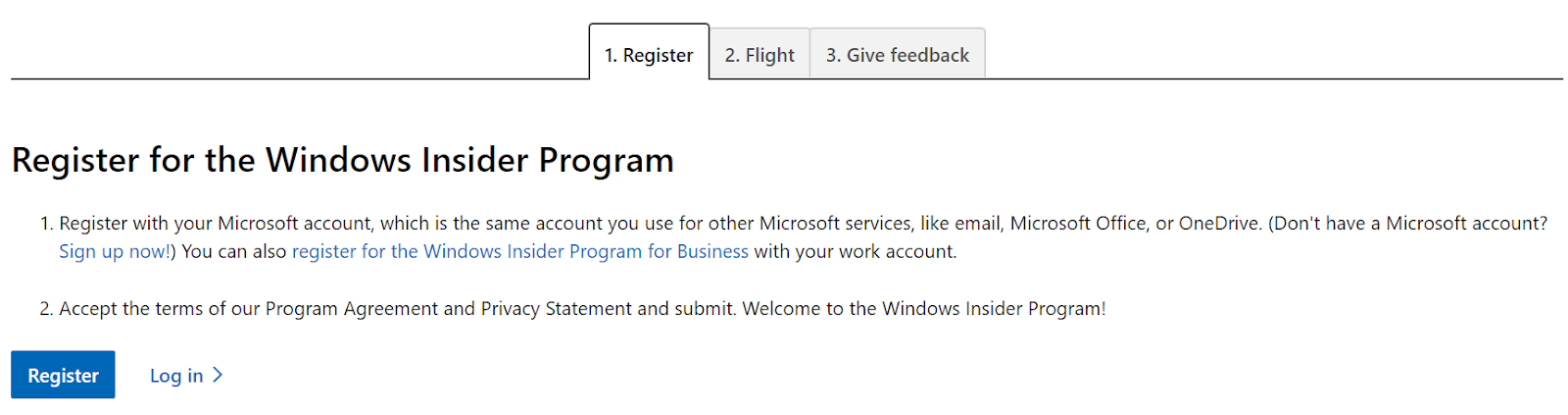
2. Click the blue registration button, labelled Register (register), which takes you to Microsoft account sign-in. Create an account if needed, or sign in and continue. Finally, accept the programme’s terms.
3. After registration, open the Flight tab shown in the image for detailed installation instructions.
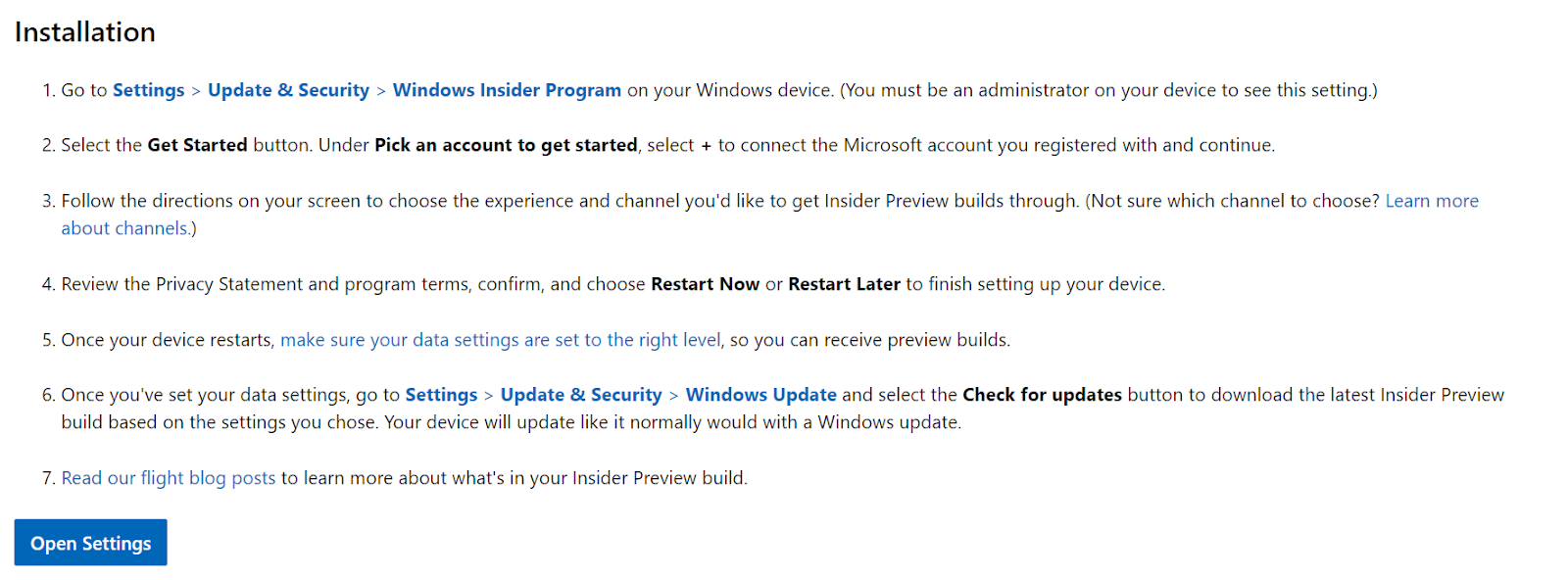
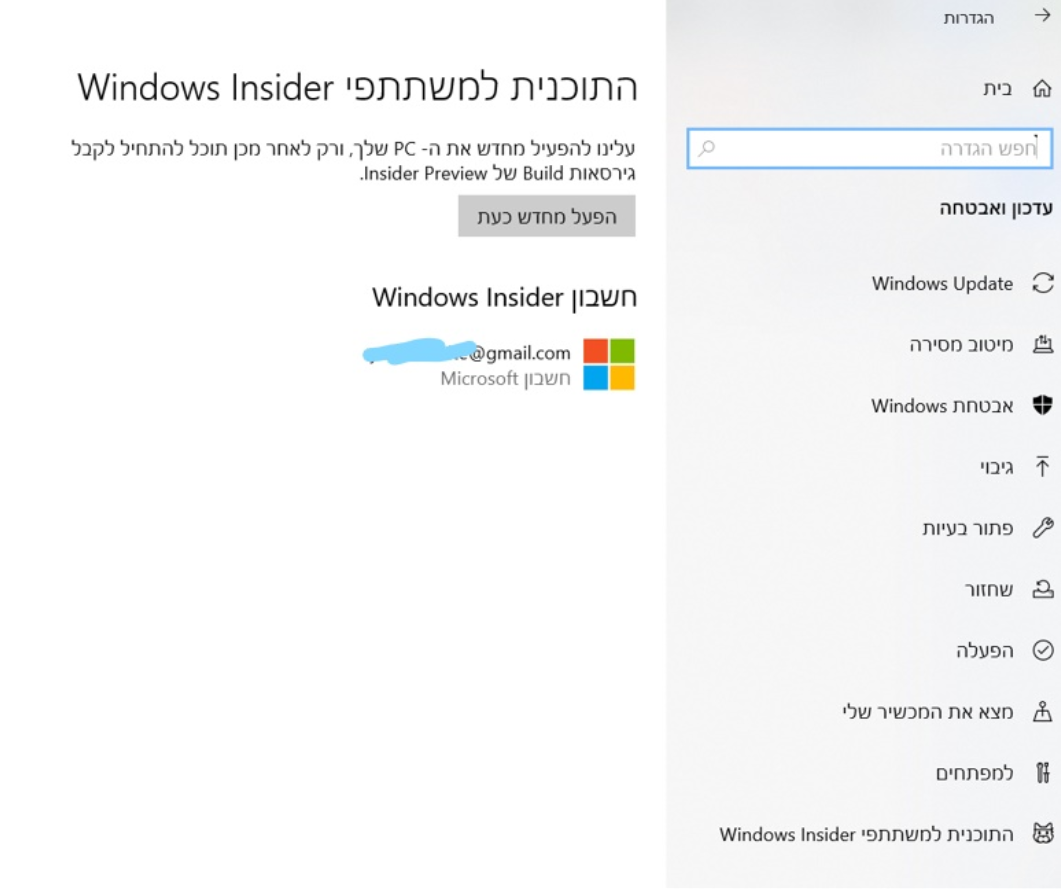
That section explains installation on your PC. Go to “Settings” on your computer, then to “Update & Security”, and select the tab “Windows Insider Programme“.
”, then click to connect “for an account Microsoft”, accept the terms and access the Windows Insider download.